
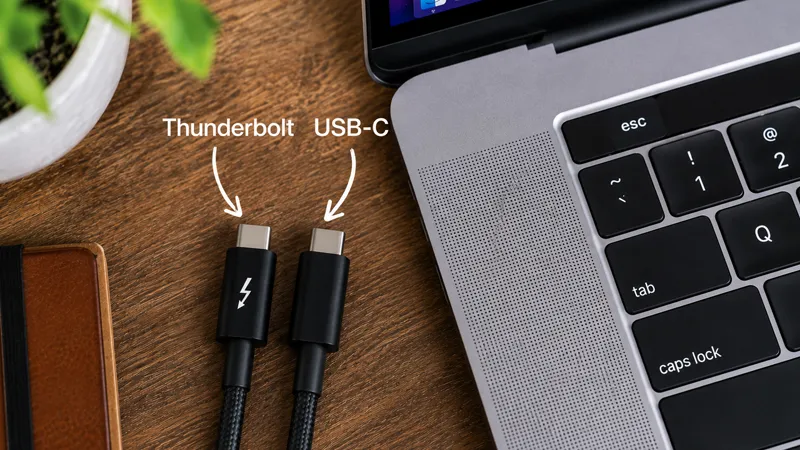
USB-C and Thunderbolt are two terms that are easy to mix up. That is hardly surprising, since they use the same connector and look identical at first glance. But behind that small port lie major differences that can affect everything from how fast you move files to how many displays you can connect.
If you've ever wondered whether you need a simple USB-C hub or a more advanced Thunderbolt dock, you're far from alone. Many MacBook users only discover the difference when something doesn't work as expected. Maybe the external SSD feels slower than expected, or that extra display won't connect. Fortunately, it's easier to understand than it seems.
USB-C is the connector - Thunderbolt is the technology
The most common misconception is that USB-C and Thunderbolt are two different types of port. In fact, USB-C is the connector shape itself - the physical plug you insert into your computer.
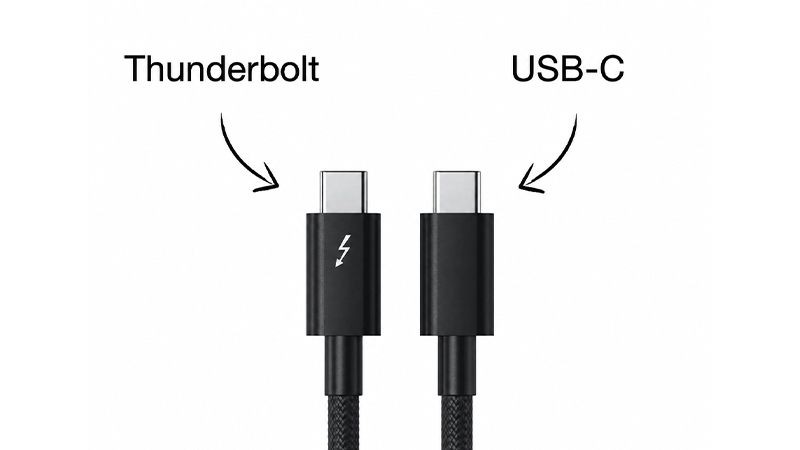
Thunderbolt, on the other hand, is the technology that uses the USB-C connector. That is why a Thunderbolt cable fits the same port as a regular USB-C cable. The difference lies in what happens behind the scenes. A Thunderbolt port can handle significantly more data and more functions at the same time than a standard USB-C port.
A simple way to think about it is that USB-C is the road itself, while Thunderbolt is how many files, displays and devices can travel on that road at once.
Comparison: USB-C vs Thunderbolt
|
Feature |
USB-C |
Thunderbolt 4 |
Thunderbolt 5 |
|---|---|---|---|
|
Connector |
USB-C |
USB-C |
USB-C |
|
Max speed |
Up to 40 Gbps (USB4) |
40 Gbps |
Up to 120 Gbps |
|
External displays |
Varies |
Several high-resolution displays |
More displays and higher resolutions |
|
Daisy chaining |
Often no |
Yes |
Yes |
|
Accessory price |
Lower |
Higher |
Highest |
|
Typical use |
Hubs, charging, simpler accessories |
Docks, professional workstations |
Creative workflows and advanced workstations |
For many users, it is really USB4 that has made the comparison a little more complicated in recent years. USB4 shares several technical features with Thunderbolt, which means the differences are not always as large as they once were. At the same time, Thunderbolt still offers clear advantages when you demand more from performance.
When is a USB-C hub enough?
For most everyday users, a USB-C hub is all they need. If you want to connect a memory card, a mouse, a keyboard, an external hard drive or perhaps an extra display, a modern USB-C hub works very well.
This is especially true if you use your MacBook at home or in the office and mainly want to avoid plugging in multiple cables every time you sit down at your desk. A USB-C hub is also both smaller and less expensive than a Thunderbolt dock, making it a popular choice for students, home offices and users on the go.
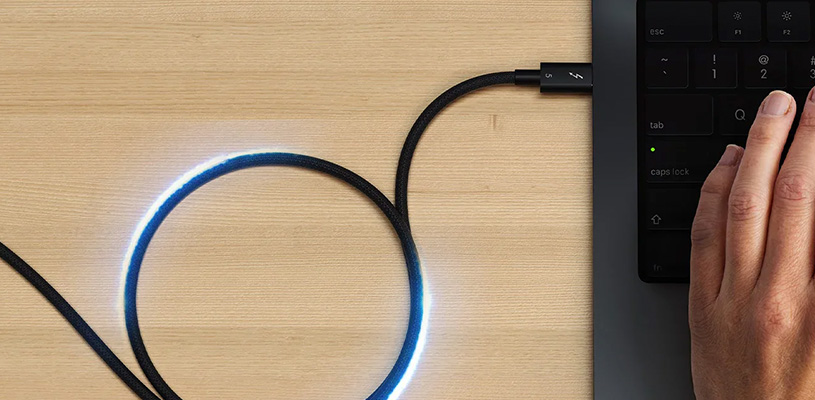
If you have, for example, a MacBook Air and an external 4K display, there is rarely any reason to invest in an advanced Thunderbolt solution.
When is Thunderbolt worth the money?
Thunderbolt comes into its own when several demanding tasks need to be handled at the same time. That could mean video editing directly from an external SSD, several high-resolution displays or large amounts of data being moved between different storage devices.
If you work with photography, video, music production or other creative workflows, you will often notice the difference. Thunderbolt docks can serve as the hub for your entire setup, with displays, network, storage and charging all running through a single cable.
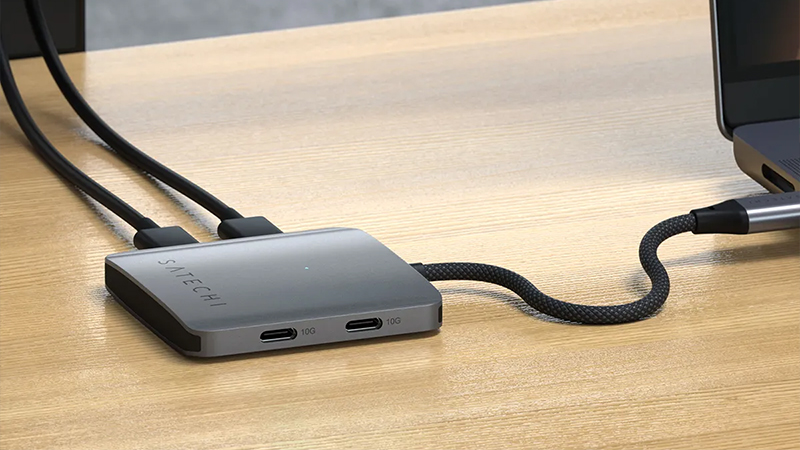
A typical example is a MacBook Pro connected to two external displays, fast storage and network via a dock. Here, Thunderbolt's higher bandwidth is a clear advantage.
How can you tell if a port has Thunderbolt?
The easiest clue is the lightning symbol. On many computers, cables and docks, a small lightning icon shows that the product supports Thunderbolt.
On modern MacBook models, things are a little simpler because many of the ports already support Thunderbolt. If you're unsure, you can open System Information in macOS and check the specifications for the computer's ports.
It is also important to remember that not all USB-C cables are equally fast. One cable may look identical but still offer very different performance. That is why it is always worth checking the specification before you buy a new cable or dock.
Which solution is best for you?
For most people, the choice is not really between USB-C and Thunderbolt, but about how you use your computer. If you mainly need more ports and simple connectivity for everyday accessories, a USB-C hub goes a long way.
If, however, you work with large files, multiple displays or want to build a complete workstation around your MacBook, a Thunderbolt dock can be an investment that saves both time and frustration in the long run.
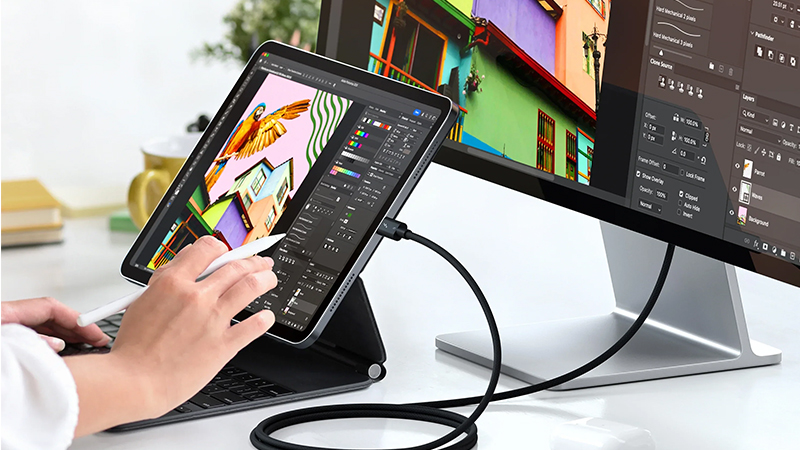
Once you understand that USB-C is the connector and Thunderbolt is the technology behind it, choosing the right accessory becomes much easier the next time you shop.
FAQ
Are USB-C and Thunderbolt the same thing?
No. USB-C is the connector itself, while Thunderbolt is a technology that uses the USB-C connector to transfer data, video and power at high performance.
Do I need Thunderbolt for an external display?
Not always. Many external displays work perfectly well via USB-C. Thunderbolt becomes especially relevant when you use multiple displays or very high resolutions.
Can I use a USB-C cable in a Thunderbolt port?
Yes. Thunderbolt ports are backward compatible with USB-C devices and cables.
How can I tell whether my MacBook has Thunderbolt?
Check the computer's specifications or look for the lightning symbol next to the port. You can also see the information in System Information in macOS.
Is Thunderbolt 5 much faster than Thunderbolt 4?
Yes. Thunderbolt 5 can offer significantly higher bandwidth and is designed for more demanding workflows with multiple displays and very fast storage.